
Configure Digital
We’re pleased to share that First State Bank & Trust will be upgrading our online and mobile banking platform to Configure Digital on Wednesday, May 6, 2026. This enhancement will provide a smoother, more intuitive experience with expanded features to support your banking needs.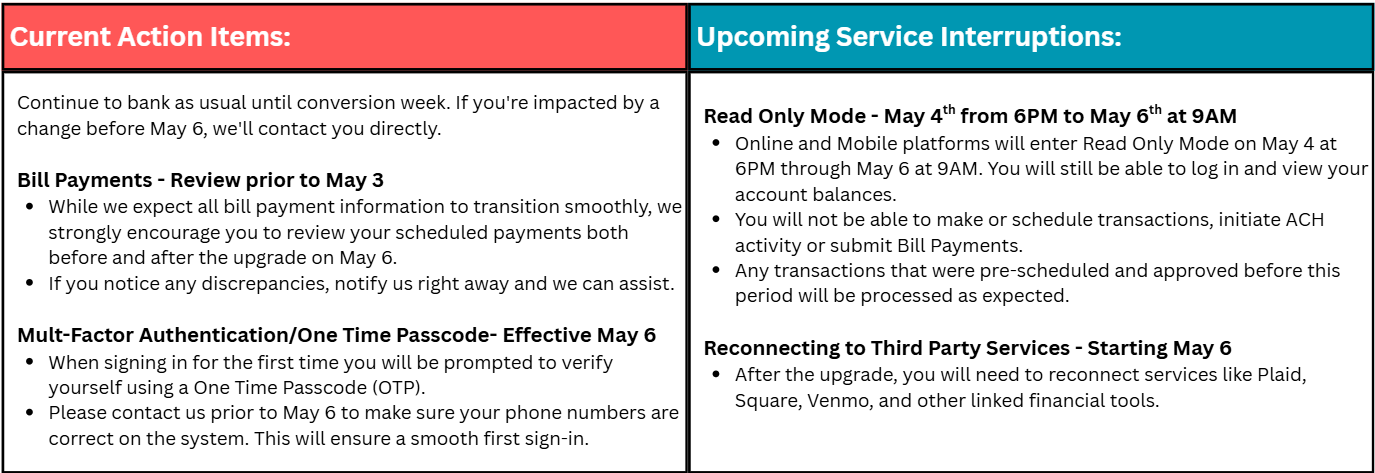
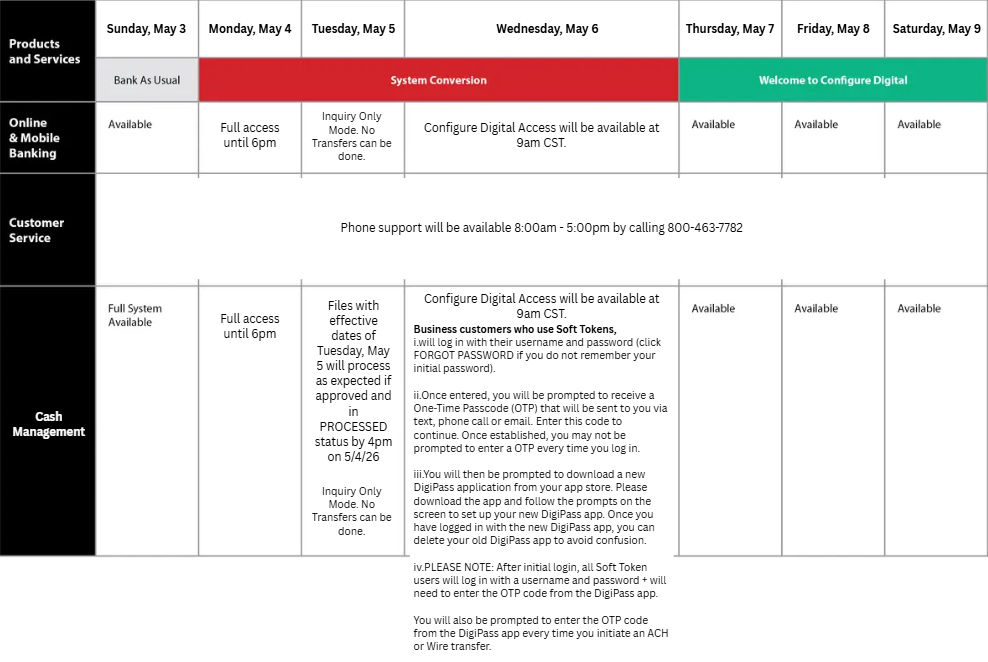
Conversion Week Timeline and Service Availability
All Banking Customers
- Please note that with the new system there will be an updated URL to sign in and you will need to update any favorited or bookmarked links to our website.
- If you do not have automatic updates for apps on your phone, you will have to go into the app store and update your app for it to work.
- FaceID and Fingerprint Recognition will not work the first time you sign into the new online banking. You will be required to enter your username and password when signing in. If you have forgotten either of these please, give us a call and we can assist you.
- When our online banking has been updated you will be asked to re-accept our updated terms and conditions on sign-in.
- Phone Banking, Online Banking, Cash Management, Mobile Banking, Bill Pay, External Transfers, and Zelle® will be in “read only” mode from 6PM on Monday, May 4 thru 9AM on Wednesday, May 6. You will not be able to perform any transactions during this time. Any scheduled/recurring Bill Payments and Internal Transfers scheduled will process as expected, as long as they were in a PROCESSED status prior to 4PM on Monday, May 4. If you need to make an internal transfer during this time period, please contact the bank at 800-463-7782.
- Text and Email Alerts that have been set up in the current system WILL migrate to Configure Digital. Push Notification Alerts will need to be reestablished after migration.
- e-Statement settings will migrate to the new system.
- Bill Payments will migrate to the new system. We encourage you to make note of all the payees you have in your Bill Pay system and all of the payments you have scheduled so you can verify everything migrated correctly.
- Scheduled/Recurring Internal Transfer will migrate to the new system. Please verify everything looks correct after you log in to Configure Digital for the first time on May 6.
- You will no longer have to select the “Cash Management” dropdown when signing in. Our new login page is for both personal and business accounts.
- We have added a new and improved security feature that will replace our challenge questions. When signing in for the first time you will be prompted to verify yourself using a One Time Password (OTP) sent to your phone. Please contact us prior to May 6th to make sure we have an updated phone number for you to ensure a smooth first sign in.
- If you use the Business Mobile App, you will be prompted to download a new App from the App store at first log in. The same app will be used for retail and business customers on Configure Digital. If you are having trouble, please search "FSBT Mobile" in the app store.
- Our system will be in “read only” mode from 6PM on Monday, May 4 thru 9AM on Wednesday, May 6. You will not be able to perform any transactions during this time. Any scheduled/recurring Bill Payments, Transfers, ACH, Wires scheduled will process as expected, as long as they were in a PROCESSED status prior to 4PM on Monday, May 4. If you need to make an internal transfer during this time period, please contact the bank at 800-463-7782.
- You will log in with your username and password (click FORGOT PASSWORD if you do not remember your initial password).
- Once entered, you will be prompted to receive a One-Time Passcode (OTP) that will be sent to you via text, phone call or email. Enter this code to continue. Once established, you may not be prompted to enter a OTP every time you log in.
- You will then be prompted to download a new DigiPass application from your app store. Please download the app and follow the prompts on the screen to set up your new DigiPass app. Once you have logged in with the new DigiPass app, you can delete your old DigiPass app to avoid confusion.
- PLEASE NOTE: After initial login, all Soft Token users will log in with a username and password + will need to enter the OTP code from the DigiPass app. You will also be prompted to enter the OTP code from the DigiPass app every time you initiate an ACH or Wire transfer.
- ACH templates will be migrated over to the new system. Once in the new system, please review templates, participants and offset before initiating a batch.
- Reoccurring and/or future dated ACH payments will not be migrated over to the new system though. Recurring and future ACH payments will need to be set up again. We recommend when initiating a file in the current system, using the “Save as Template” option.
- Prior to the upgrade, please create ACH templates for each unique file since the upgraded online banking does not support the Copy feature. Please ensure that you have all your payee and payment information stored outside of online banking as well.
- ACH history will not be migrated. We encourage you to download file history from Cash Management prior to April 30 for your records.
- Reoccurring and/or future dated wire payments will not be migrated over to the new system though. Recurring and future wire payments will need to be set up again. Please ensure that you have all of your payee and payment information stored outside of online banking as well.
- We recommend reviewing the following information such as Beneficiary, Beneficiary Institution, Receiving Institution, and any additional wire information you have.
- Wire history will not be migrated. We encourage you to download file history from Cash Management prior to April 30 for your records.
- You may be required to download drivers again. Please go through the process of testing the scanner prior to making your first deposit:
- Start Menu > Search for "Ranger Flex" > If you see the Silver Bullet pop up, you are connected! If you get any error messages, please contact us at 800-463-7782 and ask for Jackie H or Kalie.
- RDC history will NOT migrate. We encourage you to download any reports from Cash Management prior to April 30, for your records.
- This upgrade will require that you make changes to your QuickBooks or Quicken software, so please take action to ensure a smooth transition.
- A data file backup and a final transaction download should be completed by May 1, 2026. Please make sure to complete the final download this date since transaction history might not be available after the upgrade.
- On May 6, 2026, you will then disconnect and reconnect your Quickbooks account all in one session.
- Exporting online banking transactions to QuickBooks/Quicken will be unavailable for approximately 5 days after we upgrade our online banking system.
Quickbooks Online Conversion Instructions
⚠️ Important: Action Required before 5/1/2026
1. Download the final .QBO file from your bank
- Log in to online banking.
- Select an account.
- Choose Download.
- Select:
- Format: Web Connect / QuickBooks (.QBO)
- Date range: From the last imported date through today
- Save the file to your computer.
- In QBO, go to Transactions → Bank transactions.
- Select the correct account.
- Click Upload transactions.
- Upload the .QBO file.
- Confirm the account mapping (IMPORTANT: map it to the existing account, not a new one).
- Click Continue → Upload.
- Match, add, or exclude transactions as needed until the queue is clear
⚠️ Important: Action Required on 5/6/2026
Reconnect Your Bank Account in QuickBooks Online
We are updating the connection used for online banking downloads in QuickBooks Online. To continue receiving transactions without interruption, you will need to disconnect and reconnect your bank account on our go‑live date – May 6, 2026.
This can be done all on the same day and will not affect your existing transactions or balances in QuickBooks.
WHEN TO DO THIS
Please complete the steps below on May 6, during one session in QuickBooks Online.
- Do not disconnect early
- Complete the disconnect after your final download
- Reconnect immediately
- Log in to QuickBooks Online.
- Select Transactions (or Banking) from the left‑hand menu.
- Click on the bank account you need to update.
- Click the pencil (✏️) icon in the upper‑right corner of the account tile.
- Select Edit account info.
- Check the box next to Disconnect this account on save.
- Click Save and Close.
- Repeat these steps for any additional accounts connected to our bank.
Important: When prompted, always connect the downloaded file to your existing account.
Do NOT choose “Add new account.”
Option A: Upload a Web Connect File (Most Common)
- Sign in to your online banking website.
- Download a Web Connect file (.QBO or .QFX) using a date range that starts after your last downloaded transaction.
- Return to QuickBooks Online.
- Go to Transactions → Banking.
- Click Upload transactions (File Upload).
- Select the Web Connect file you downloaded.
- When prompted, choose the existing bank account from the dropdown.
- Click Next, then Let’s go!
- If QuickBooks prompts you to search for your bank, select the bank under the new connection and sign in using your online banking credentials.
- Confirm the correct account mapping before completing the connection.
- Go to the For Review tab in the Banking section.
- Review, match, or add transactions as usual.
- Watch for possible duplicates and exclude any that already exist.
Once these steps are complete:
- Your bank account will be reconnected successfully
- Future transactions will download as normal
- Your historical data will remain unchanged
- Complete steps in one session on go‑live day
- Do not select “Add New Account” unless instructed
- If you manage multiple accounts, repeat the steps for each one
Thank you for completing this quick update to keep your QuickBooks connection running smoothly.
Other Conversion Instructions
Quickbooks Desktop Conversion Instructions
Quickbooks Online Conversion Instructions
Quicken Conversion Instructions
External Transfer/TransferNow Users
- External Transfer will NOT migrate to the new system.
- All External Transfers initiated via TransferNow/External Transfer will need to be reestablished after migration.
- Please make note of all routing numbers and account numbers that you use in External Transfer/TransferNow prior to May 3, 2026.